
Ringkasan Cepat
- Pindai USB dengan antivirus terbaru dan matikan AutoPlay sebelum membuka file.
- Gunakan BitLocker To Go atau VeraCrypt untuk melindungi data jika USB hilang.
- Jangan pernah mencolokkan USB tak dikenal; gunakan cadangan dan kebiasaan aman.
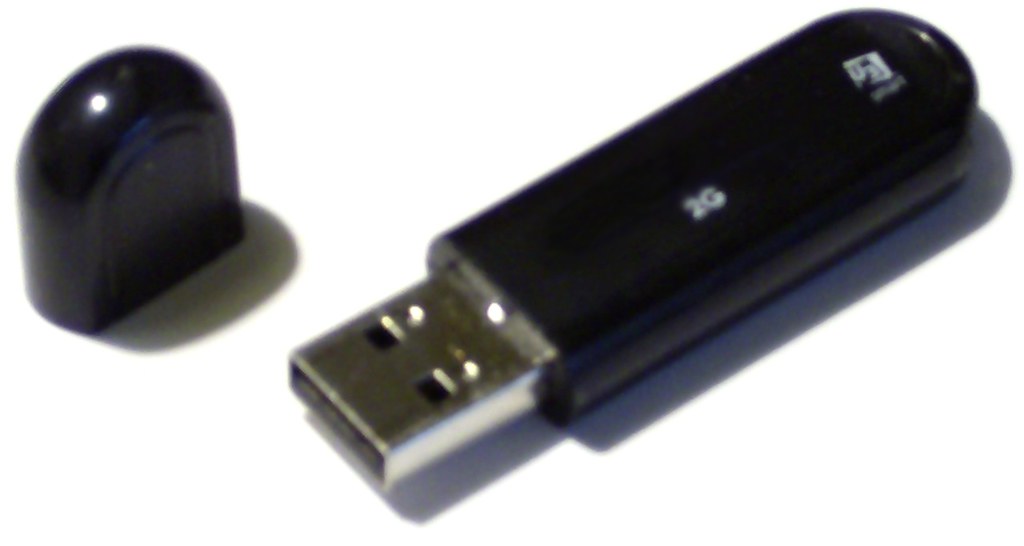
Mengamankan USB flash drive bukan sekadar menyalakan antivirus; Anda perlu memindai malware, mengenkripsi data dengan BitLocker To Go, dan disiplin menghindari USB tak dikenal. Panduan ini membahas langkah praktis untuk Windows dan kebiasaan harian agar USB tidak menjadi pintu masuk infeksi atau kebocoran data.
Mengapa USB Flash Drive Rentan terhadap Malware dan Pencurian Data
USB flash drive dirancang untuk mobilitas. Ia sering berpindah dari satu komputer ke komputer lain, dipinjam teman, dicolok ke printer, atau tertinggal di ruang rapat. Pola pemakaian ini membuat USB menjadi salah satu jalur penyebaran malware yang sulit dikendalikan, terutama jika AutoRun masih aktif dan pengguna terbiasa membuka file langsung dari drive.
Selain infeksi, risiko lain adalah kehilangan perangkat. USB yang tidak terenkripsi bisa dibaca siapa pun yang menemukannya. Dokumen kerja, foto pribadi, basis data pelanggan, atau file konfigurasi dapat bocor hanya karena perangkat terjatuh di tempat umum. Serangan lewat dokumen juga sering memanfaatkan file Office atau PDF berbahaya, seperti dibahas dalam Mengenal Malware Office & PDF: Makro Jahat dan Cara Aman. Karena itu, pengamanan USB perlu mencakup pencegahan malware dan perlindungan data.
Risiko utama yang perlu Anda sadari
- Malware yang menyalin dirinya ke USB dan menginfeksi komputer lain.
- Pencurian data jika USB hilang atau dicuri.
- File berbahaya yang menyamar sebagai dokumen biasa.
- USB tak dikenal yang sengaja ditinggalkan untuk memancing rasa ingin tahu.
| Skenario | Risiko | Tindakan Aman |
|---|---|---|
| USB ditemukan di parkiran | Malware atau alat perekam data | Jangan dicolok; serahkan ke tim keamanan atau buang |
| USB dipinjam rekan kerja | Infeksi silang atau data terbaca | Enkripsi, scan sebelum dan sesudah dipakai |
| USB tertinggal di kafe | Data pribadi dan kerja bocor | Gunakan BitLocker To Go dan jangan simpan data sensitif tanpa cadangan |
| Membuka file dari USB | Makro jahat atau exploit dokumen | Scan dulu, buka dengan proteksi, nonaktifkan makro |
Langkah Scan Malware pada USB Flash Drive dengan Aman
Memindai USB tidak cukup hanya dengan mengandalkan antivirus yang terpasang. Anda perlu memastikan definisi malware diperbarui, mematikan eksekusi otomatis, dan tidak membuka file sebelum proses pemindaian selesai. Berikut urutan yang aman untuk pengguna Windows.
- Perbarui antivirus dan sistem. Pastikan Windows Security atau antivirus pihak ketiga sudah diperbarui.
- Nonaktifkan AutoPlay. Di Windows, buka Settings > Bluetooth & devices > AutoPlay, lalu matikan opsi Use AutoPlay for all media and devices. Ini mencegah file langsung berjalan saat USB dicolok.
- Colokkan USB, tetapi jangan buka folder secara otomatis. Jika muncul dialog, pilih Take no action atau tutup jendela tersebut.
- Pindai seluruh drive. Buka File Explorer, klik kanan drive USB, pilih Scan with Microsoft Defender atau opsi pemindaian dari antivirus Anda. Tunggu hingga selesai.
- Periksa hasil dan karantina. Jika ada ancaman, biarkan antivirus mengarantina atau menghapusnya. Jangan mencoba menjalankan file yang terdeteksi.
- Pindai file individual sebelum dibuka. Untuk file yang ingin disalin, klik kanan file > Scan. Jika ragu, jangan buka di komputer utama.
Jika USB pernah dicolok ke komputer publik atau komputer orang lain, lakukan pemindaian sebelum menyalin apa pun ke perangkat utama. Untuk file yang tidak sensitif, Anda bisa memeriksa hash atau mengunggahnya ke layanan pemeriksaan malware daring, tetapi jangan pernah mengunggah dokumen rahasia ke layanan publik. Jika USB terinfeksi parah, salin hanya file penting yang sudah dipindai, lalu format USB. Untuk kebutuhan forensik atau insiden serius, serahkan kepada tim TI.
Setelah file aman, pertimbangkan membersihkan metadata sebelum dibagikan, seperti dijelaskan pada Tutorial Membersihkan Metadata Foto & Dokumen Sebelum Dibagikan.
Enkripsi BitLocker To Go: Kunci Data di USB Flash Drive
Enkripsi membuat isi USB tidak bisa dibaca tanpa kata sandi atau kunci pemulihan. Di Windows edisi Pro, Enterprise, dan Education, fitur BitLocker To Go dapat digunakan untuk mengenkripsi drive removable. Jika edisi Windows Anda tidak mendukung, gunakan alternatif enkripsi open source tepercaya seperti VeraCrypt, dan tetap simpan kunci pemulihan dengan aman.
Cara mengaktifkan BitLocker To Go
- Colokkan USB ke komputer.
- Buka File Explorer, klik kanan drive USB, lalu pilih Turn on BitLocker.
- Centang opsi menggunakan kata sandi untuk membuka kunci drive, lalu masukkan kata sandi yang kuat dan unik.
- Simpan kunci pemulihan. Anda bisa menyimpannya ke akun Microsoft, file, atau mencetaknya. Jangan simpan kunci pemulihan di USB yang sama.
- Pilih apakah ingin mengenkripsi seluruh drive atau hanya ruang yang sudah terpakai. Untuk USB yang pernah berisi data, enkripsi seluruh drive lebih aman.
- Pilih mode enkripsi. Mode kompatibel cocok jika USB akan dibuka di Windows versi lama; mode baru lebih cocok untuk perangkat modern.
- Klik Start dan tunggu proses enkripsi selesai. Jangan cabut USB selama proses berlangsung.
Setelah aktif, setiap kali USB dicolok ke komputer lain, Windows akan meminta kata sandi. Simpan kata sandi di pengelola kata sandi, bukan di catatan yang menempel di perangkat. Enkripsi melindungi data jika USB hilang atau dicuri, tetapi tidak mencegah malware yang sudah berjalan di komputer Anda. Jadi, enkripsi dan pemindaian malware harus berjalan bersama.
Hindari USB Tak Dikenal dan Terapkan Kebiasaan Aman
Serangan USB drop mengandalkan rasa ingin tahu. Pelaku meninggalkan USB di tempat umum dengan label menarik, lalu menunggu seseorang mencolokkannya. USB tersebut bisa berisi malware, script perekam ketikan, atau dokumen yang memicu exploit. Aturan paling aman sederhana: jangan pernah mencolokkan USB yang bukan milik Anda.
- Jangan colok USB temuan. Serahkan ke tim keamanan, petugas kehilangan, atau buang sesuai aturan.
- Beri label USB milik sendiri. Gunakan tanda khusus dan catat jika dipinjam.
- Aktifkan enkripsi. BitLocker To Go atau VeraCrypt membuat data tidak terbaca jika perangkat hilang.
- Matikan AutoPlay. Ini mengurangi risiko file berjalan otomatis.
- Pisahkan USB kerja dan pribadi. Kurangi risiko infeksi silang.
- Jangan simpan satu-satunya salinan data di USB. Buat cadangan terpisah; untuk data ponsel, lihat panduan Mengamankan Backup WhatsApp & Telegram: Panduan Aman.
Jika USB terpaksa harus diperiksa, gunakan komputer terisolasi tanpa akses jaringan dan jangan buka file apa pun. Untuk sebagian besar pengguna, langkah tersebut tidak sebanding dengan risikonya. Lebih baik gunakan layanan transfer file yang tepercaya atau enkripsi arsip sebelum dikirim.
Checklist Cepat Pengamanan USB Flash Drive
Gunakan daftar berikut sebagai kebiasaan rutin sebelum dan sesudah memakai USB.
- Perbarui antivirus dan sistem operasi.
- Matikan AutoPlay/AutoRun.
- Pindai USB sebelum membuka file.
- Aktifkan BitLocker To Go atau VeraCrypt.
- Simpan kunci pemulihan di tempat aman yang berbeda.
- Jangan mencolok USB tak dikenal.
- Cadangkan data penting ke lokasi lain.
- Bersihkan metadata file sebelum dibagikan jika perlu.
Dengan menggabungkan pemindaian malware, enkripsi, dan disiplin fisik, USB flash drive tetap bisa digunakan dengan aman. Keamanan bukan fitur sekali pasang, melainkan kebiasaan yang diulang setiap kali Anda memindahkan data.
Pertanyaan yang Sering Diajukan (FAQ)
Apakah BitLocker To Go tersedia di Windows Home?
Apakah enkripsi USB memperlambat transfer data?
Bagaimana cara aman memindai USB yang dicurigai?
Apakah USB yang ditemukan boleh dicolok ke komputer?
Apa yang harus dilakukan jika USB terinfeksi malware?
Apakah antivirus saja cukup untuk mengamankan USB?
English Version — USB Flash Drive Security Tutorial: Scan, Encrypt, Stay Alert
Quick Summary
- Scan USB drives with the latest antivirus and disable AutoPlay before opening files.
- Use BitLocker To Go or VeraCrypt to protect data if the USB drive is lost.
- Never plug in unknown USB drives; use backups and safe habits.
Securing a USB flash drive is not just about turning on antivirus; you need to scan for malware, encrypt data with BitLocker To Go, and be disciplined about avoiding unknown USB drives. This guide covers practical steps for Windows and daily habits so that USB drives do not become an entry point for infection or data leakage.
Why USB Flash Drives Are Vulnerable to Malware and Data Theft
USB flash drives are designed for mobility. They often move from one computer to another, are borrowed by friends, plugged into printers, or left behind in meeting rooms. This usage pattern makes USB drives one of the hardest malware transmission channels to control, especially if AutoRun is still enabled and users are in the habit of opening files directly from the drive.
Besides infection, another risk is device loss. An unencrypted USB drive can be read by anyone who finds it. Work documents, personal photos, customer databases, or configuration files can leak simply because the device was dropped in a public place. Document-based attacks also often exploit malicious Office or PDF files, as discussed in Understanding Office & PDF Malware: Malicious Macros and How to Stay Safe. Therefore, USB security needs to include both malware prevention and data protection.
Key risks you should be aware of
- Malware that copies itself to the USB drive and infects other computers.
- Data theft if the USB drive is lost or stolen.
- Malicious files disguised as ordinary documents.
- Unknown USB drives deliberately left behind to tempt curiosity.
| Scenario | Risk | Safe Action |
|---|---|---|
| USB drive found in a parking lot | Malware or a data skimmer | Do not plug it in; hand it to the security team or dispose of it |
| USB drive borrowed by a coworker | Cross-infection or data exposure | Encrypt; scan before and after use |
| USB drive left at a café | Personal and work data leaked | Use BitLocker To Go and do not store sensitive data without a backup |
| Opening a file from a USB drive | Malicious macros or document exploits | Scan first, open with protection enabled, disable macros |
Steps to Safely Scan a USB Flash Drive for Malware
Scanning a USB drive is not enough if you simply rely on the installed antivirus. You need to make sure malware definitions are updated, disable automatic execution, and avoid opening files before the scan is complete. Here is a safe sequence for Windows users.
- Update your antivirus and system. Make sure Windows Security or your third-party antivirus is up to date.
- Disable AutoPlay. In Windows, go to Settings > Bluetooth & devices > AutoPlay, then turn off the Use AutoPlay for all media and devices option. This prevents files from running immediately when the USB drive is plugged in.
- Plug in the USB drive, but do not open the folder automatically. If a dialog appears, select Take no action or close that window.
- Scan the entire drive. Open File Explorer, right-click the USB drive, and select Scan with Microsoft Defender or your antivirus's scan option. Wait until it finishes.
- Check the results and quarantine. If there are threats, let the antivirus quarantine or remove them. Do not try to run detected files.
- Scan individual files before opening them. For files you want to copy, right-click the file > Scan. If in doubt, do not open them on your main computer.
If the USB drive has ever been plugged into a public computer or someone else's computer, scan it before copying anything to your main device. For non-sensitive files, you can check the hash or upload them to an online malware scanning service, but never upload confidential documents to a public service. If the USB drive is heavily infected, copy only the important files that have been scanned, then format the USB drive. For forensic needs or serious incidents, hand it over to the IT team.
Once the files are safe, consider cleaning metadata before sharing them, as explained in Tutorial on Cleaning Photo & Document Metadata Before Sharing.
BitLocker To Go Encryption: Lock Down Data on USB Flash Drives
Encryption makes the contents of a USB drive unreadable without a password or recovery key. On Windows Pro, Enterprise, and Education editions, BitLocker To Go can be used to encrypt removable drives. If your Windows edition does not support it, use a trusted open-source encryption alternative such as VeraCrypt, and still store the recovery key safely.
How to enable BitLocker To Go
- Plug the USB drive into the computer.
- Open File Explorer, right-click the USB drive, and select Turn on BitLocker.
- Check the option to use a password to unlock the drive, then enter a strong, unique password.
- Save the recovery key. You can save it to your Microsoft account, a file, or print it. Do not store the recovery key on the same USB drive.
- Choose whether to encrypt the entire drive or only used space. For a USB drive that has previously contained data, encrypting the entire drive is safer.
- Choose the encryption mode. Compatible mode is suitable if the USB drive will be opened on older Windows versions; the new mode is better for modern devices.
- Click Start and wait for the encryption process to finish. Do not unplug the USB drive during the process.
Once enabled, every time the USB drive is plugged into another computer, Windows will ask for the password. Store the password in a password manager, not in a note attached to the device. Encryption protects data if the USB drive is lost or stolen, but it does not prevent malware already running on your computer. Therefore, encryption and malware scanning must go hand in hand.
Avoid Unknown USB Drives and Adopt Safe Habits
USB drop attacks rely on curiosity. Attackers leave USB drives in public places with attractive labels, then wait for someone to plug them in. These USB drives may contain malware, keystroke-logging scripts, or documents that trigger exploits. The safest rule is simple: never plug in a USB drive that is not yours.
- Do not plug in a found USB drive. Hand it to the security team or lost-and-found staff, or dispose of it according to policy.
- Label your own USB drives. Use a distinctive mark and keep a record if they are borrowed.
- Enable encryption. BitLocker To Go or VeraCrypt makes data unreadable if the device is lost.
- Disable AutoPlay. This reduces the risk of files running automatically.
- Separate work and personal USB drives. Reduce the risk of cross-infection.
- Do not store the only copy of your data on a USB drive. Make a separate backup; for phone data, see the guide Securing WhatsApp & Telegram Backups: A Safe Guide.
If a USB drive must be examined, use an isolated computer with no network access and do not open any files. For most users, that step is not worth the risk. It is better to use a trusted file transfer service or encrypt an archive before sending it.
Quick USB Flash Drive Security Checklist
Use the following list as a routine before and after using a USB drive.
- Update your antivirus and operating system.
- Disable AutoPlay/AutoRun.
- Scan the USB drive before opening files.
- Enable BitLocker To Go or VeraCrypt.
- Store the recovery key in a safe, separate place.
- Do not plug in unknown USB drives.
- Back up important data to another location.
- Clean file metadata before sharing if needed.
By combining malware scanning, encryption, and physical discipline, USB flash drives can still be used safely. Security is not a one-time feature; it is a habit repeated every time you move data.
Komentar
Posting Komentar